Find a station
Open the tool with a Bluetooth LE adapter enabled. A scan lists nearby stations with their name, status, channel and signal strength.
Select your Lighthouse stations and turn them on, put them in standby or send them to sleep over Bluetooth LE. Enable automatic wake-up to switch them on when you start SteamVR.
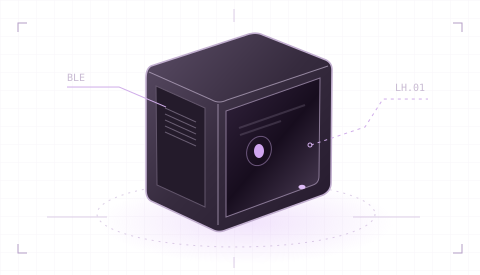
Open the tool with a Bluetooth LE adapter enabled. A scan lists nearby stations with their name, status, channel and signal strength.
Select several stations for On, Standby or Sleep. The confirmation lists every target. For a single station you can also set a local name or export diagnostics.
Enable “Automatically start with SteamVR” and “Power on when SteamVR starts” in Settings. SteamVR can then launch the tool and wake known stations. Choose standby or sleep if you want them to power down when your session ends.
Per-user installer with a Start menu shortcut.
Download · MSI ↓Run the Windows x64 executable directly. No installation required.
Download · EXE ↓Install using the Debian or Ubuntu package manager.
Download · DEB ↓Portable Linux executable. No installation required.
Download · AppImage ↓Double-click the downloaded MSI, then open “Basestation Tool” from the Start menu. The installer is not digitally signed.
Save the EXE in a permanent folder and double-click it. If you move it later, register SteamVR autostart again.
Open a terminal in the download folder. Install the package, then launch the tool as your regular user:
sudo apt install ./basestation-tool_0.1.0_amd64.deb
basestation-toolKeep the file in a permanent location and run these commands there:
chmod +x Basestation-Tool-0.1.0-x86_64.AppImage
./Basestation-Tool-0.1.0-x86_64.AppImage
Without FUSE:
./Basestation-Tool-0.1.0-x86_64.AppImage --appimage-extract-and-runA Bluetooth LE adapter and a supported Lighthouse station with an LHB profile are required. Control was tested with three real stations on Windows. The Linux packages were built and verified; Linux desktop and Bluetooth operation have not yet been tested. Linux requires a graphical session, glibc 2.31 or later, BlueZ and access to the system D-Bus.
Check that your PC supports Bluetooth Low Energy (BLE) and Bluetooth is enabled. Classic Bluetooth alone is not enough. If BLE is missing, use a compatible USB adapter. Connect the station to power, move it within range and scan again. On Linux, BlueZ must also be running.
Start SteamVR and enable “Automatically start with SteamVR” in the tool. Check that Basestation Tool is enabled in SteamVR’s startup applications. If you moved the EXE or AppImage, register it again from its new location.
Autostart only opens the app. Also enable “Power on when SteamVR starts”. Try scanning and manually turning on one station first to check the Bluetooth connection.